
SSO / SAML Integration
Configure SAML 2.0 Single Sign-On to allow your team to access Vector using your existing Identity Provider. This guide covers the settings you need to collect and the endpoints to configure.
Overview
How SAML SSO works with Vector.
Collect IdP Details
Gather your IdP URL, SSO/SLO endpoints, and public certificate from your Identity Provider.
Configure Both Sides
Enter your IdP details in Vector and add Vector's SP endpoints to your Identity Provider.
Test & Go Live
Validate SSO using test credentials before switching to production.
Step 1
Collect your Identity Provider details.
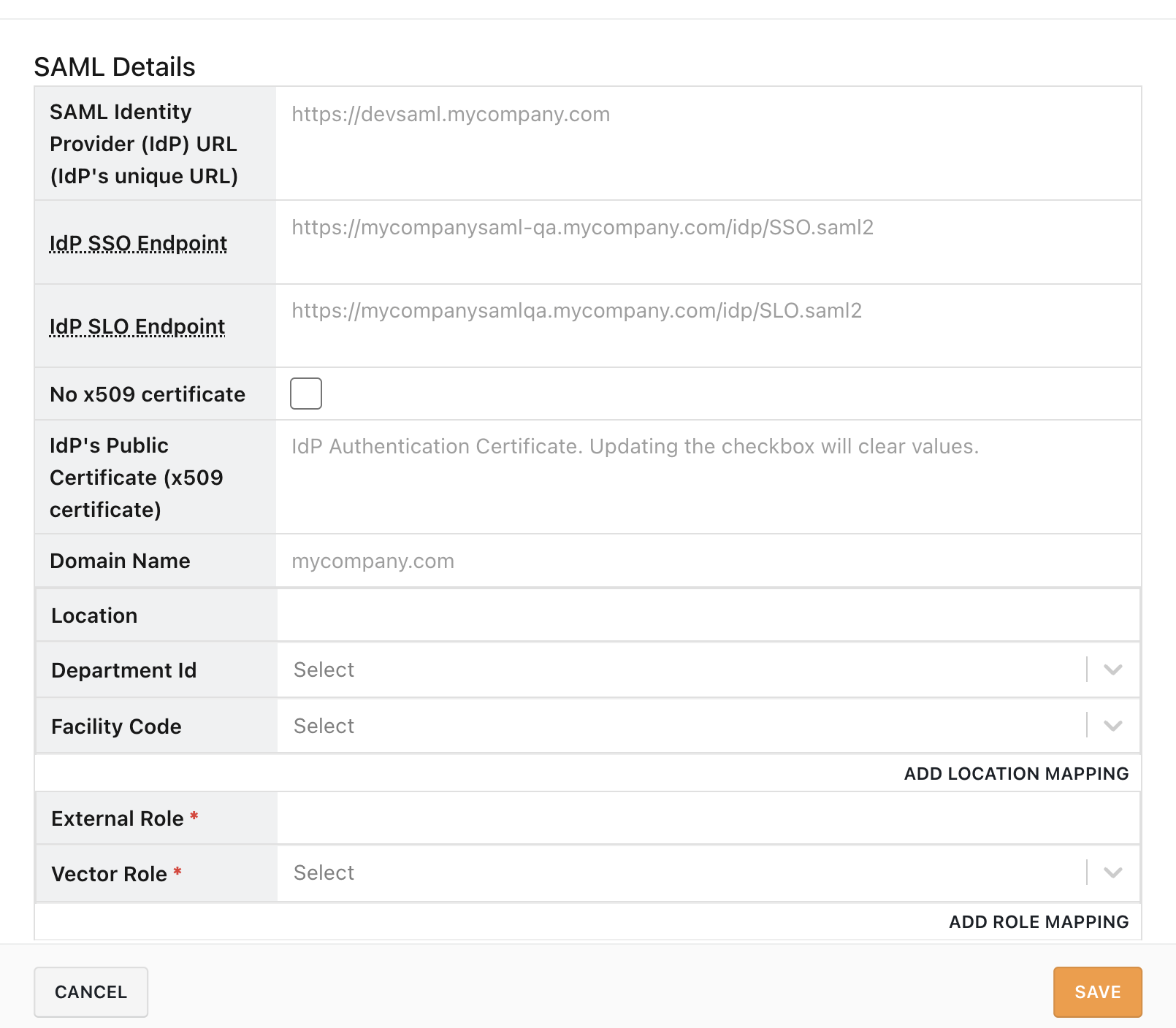
In Vector, navigate to Account & Settings → Company → SAML and complete the SAML Details section with the following values from your IdP.
SAML Identity Provider (IdP) URL
The unique URL of your Identity Provider.
Example: https://devsaml.mycompany.com
IdP's SSO Endpoint
Where Vector (the Service Provider) sends login requests.
Example: https://mycompanysaml-qa.mycompany.com/idp/SSO.saml2
IdP's SLO Endpoint
Where Vector sends Single Logout (SLO) requests.
Example: https://mycompanysaml-qa.mycompany.com/idp/SLO.saml2
IdP's Public Certificate
The x509 certificate used to verify IdP authenticity. Alternatively, you may provide the certificate fingerprint (a hash of the x509 certificate) by selecting the "No x509 certificate" checkbox.
Your company's domain name
The email domain used by your organization for SSO authentication.
Example SAML Details configuration:
Step 2
Verify your email domain.
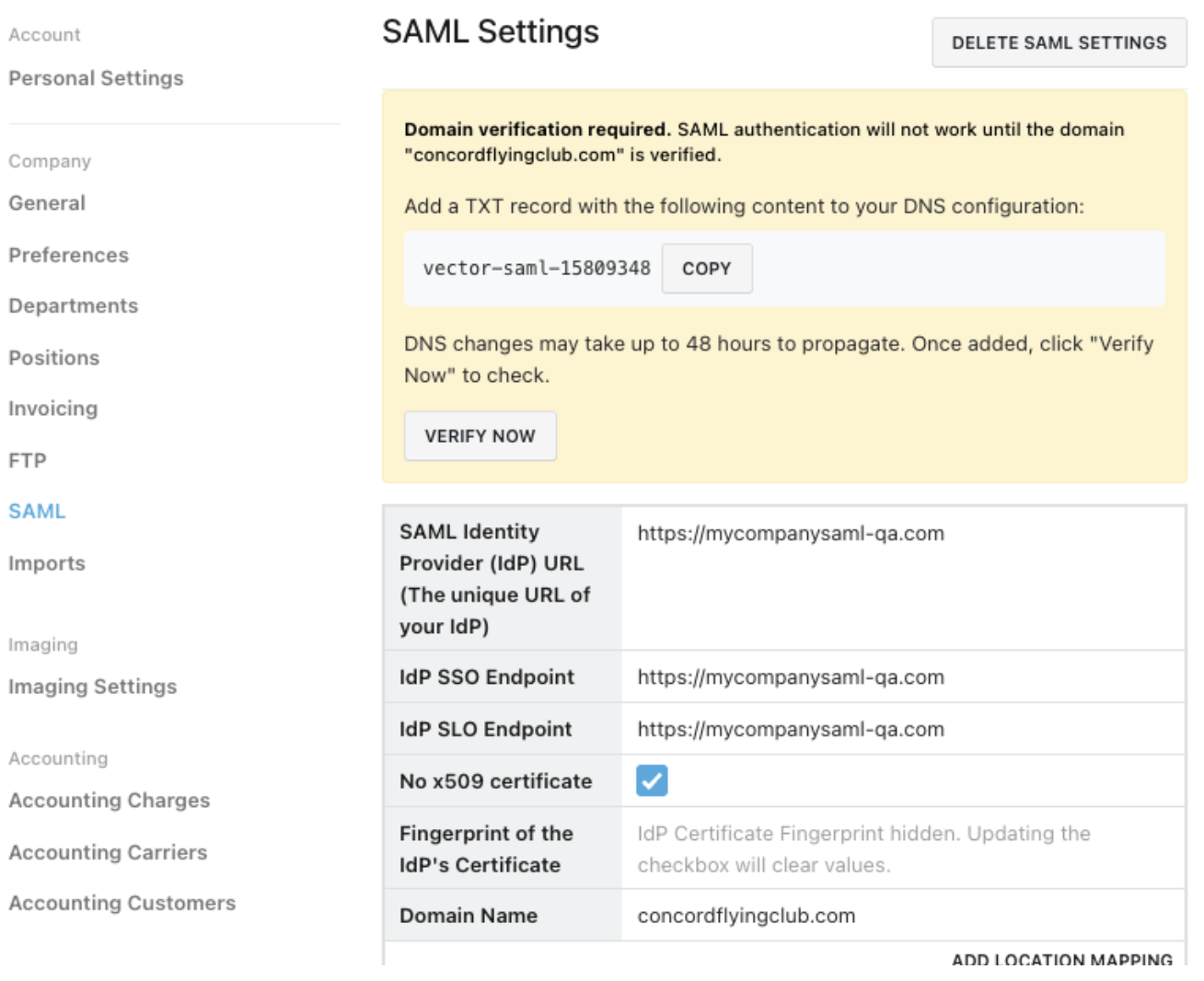
To prevent unauthorized use of your email domain, Vector requires domain ownership verification before your SAML configuration can take effect. You will need to create a DNS TXT record to prove that you control the domain.
Obtain your verification code
After you submit your SAML settings, you can copy and paste your unique verification code from the SAML configuration page. The code will look similar to: vector-saml-15809348
Example domain verification section:
Create a TXT record in your DNS
Log in to your DNS provider (e.g., Cloudflare, AWS Route 53, GoDaddy) and add a new TXT record for your email domain with the verification code as the value.
| Type | Host / Name | Value |
|---|---|---|
| TXT | @ or yourdomain.com | vector-saml-15809348 |
Click Verify in Vector
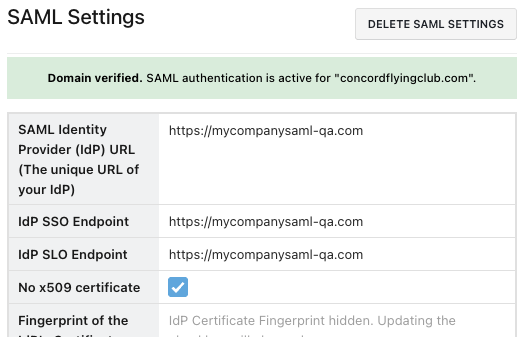
Once the DNS record has been created, navigate to Account & Settings → Company → SAML and click Verify. Vector will perform a DNS lookup to confirm the TXT record. Your SAML configuration will only become active after successful verification.
Note: DNS changes can take up to 24–48 hours to propagate. If verification fails, wait and try again. Contact your Vector Deployment Manager if the issue persists.
Example of successful domain verification:
Step 3
Configure Location & Role Mapping.
Map your organization's locations and roles to Vector equivalents to ensure users are assigned the correct facilities and permission levels.
Location Mapping
- Location
- Department ID
- Facility Code
Role Mapping
- External Role (from your IdP)
- Vector Role (controls permission levels)
Step 4
Configure your IdP with Vector's endpoints.
Add the following production environment endpoints to your Identity Provider. Replace companyname with your organization's Vector company identifier.
| Endpoint | URL |
|---|---|
| Entity ID / Connection ID | https://app.withvector.com/saml/metadata |
| Assertion Consumer Service | https://api.withvector.com/1.0/entities/actions/system/oauth2/token/saml/login/companyname |
| Single LogOut | https://api.withvector.com/1.0/entities/actions/system/oauth2/revoke/saml/processLogout/companyname |
Step 5
SAML Attribute Mapping.
Your IdP must send the following attributes so Vector can create or update user profiles and assign roles. Attribute names are case insensitive. See your IdP's documentation for configuration instructions (e.g., Okta Create SAML App Integrations and Okta Expression Language).
| SAML Attribute | Status | Description | Example |
|---|---|---|---|
Required | User email address | <username>@sso-domain.com | |
| FirstName | Required | First name | Jane |
| LastName | Required | Last name | Doe |
| Position | Optional | A value that matches a Position's SSO value. (Case sensitive) | Supervisor |
| Department | Optional | A value that matches a Department's SSO value. (Case sensitive) | 5852, Atlanta, Security |
Step 6
Test credentials & go live.
Testing ensures SSO succeeds before production go-live. If you maintain a separate test IdP, provide the following to your Vector Deployment Strategist.
- Test IdP URLs — e.g., https://devsaml.test.mycompany.com
- Test user account — e.g., vector@mycompany.com
Vector SLO Certificate
To configure Single Logout (SLO) through Vector, contact your Implementation Manager to obtain Vector's SAML 2.0 SP certificate.
Need help configuring SSO?
Your Vector Deployment Strategist can assist with setup and troubleshooting.